USPS Click-N-Ship-Compatible Label Sheets
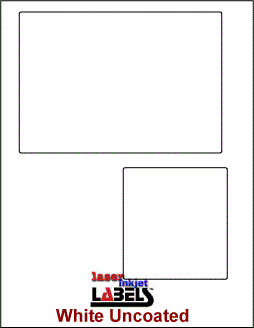 Print USPS shipping labels on convenient letter-size adhesive sheets. Our 8.5 x 11-inch, two-up Click-N-Ship-compatible sheets have permanent adhesive and a white, smudge-resistant uncoated surface. Each pack contains 100 sheets—enough for 200 label areas—so home shippers, online sellers, and small businesses can prepare packages without cutting and taping plain paper.
View Click-N-Ship-compatible label sheets
Two-Up Click-N-Ship Label Sheet Details
- Sheet size: 8.5 x 11 inches
- Layout: Two label areas per sheet
- Pack size: 100 sheets, providing 200 label areas
- Face stock: White, uncoated, smudge-resistant material
- Adhesive: Permanent
- Overall construction: 6 mil
- Brightness: 90
The peel-and-stick format keeps the shipping label flat against the package and removes the extra step of covering a plain-paper label with tape. Before ordering, confirm that your printer can handle full-sheet label stock and that the two-up layout matches the PDF format you plan to print.
How USPS Click-N-Ship Works
USPS Click-N-Ship lets personal and business account holders create, pay for, and print eligible domestic and international shipping labels online. A typical workflow is:
- Sign in to a free USPS.com account and open Click-N-Ship.
- Enter the sender, recipient, package, and ship-date information.
- Choose an available USPS service and any applicable options, then pay for the label.
- Save or open the label PDF. When offered, choose the format for two labels per standard 8.5 x 11-inch sheet without receipts.
- Print, peel, and apply the complete label to the address side of the package without wrapping it over an edge.
- Track the shipment online and, for eligible mailpieces, schedule a USPS package pickup.
Available services, prices, and pickup eligibility can change. Check the current choices in Click-N-Ship when creating each shipment.
How to Print Click-N-Ship Labels Accurately
- Test the layout first. Print the PDF on plain paper and hold it behind a label sheet to verify alignment.
- Use actual size. Select 100% or Actual Size in the print dialog. Turn off Fit, Shrink, or Scale to Page unless USPS specifically instructs otherwise.
- Check sheet orientation. Printer trays feed face-up or face-down depending on the model. Mark a plain sheet and run a test to learn the correct orientation.
- Prioritize barcode clarity. Use a laser printer or a high-quality inkjet printer with black ink. USPS recommends 600 dpi for inkjet printing.
- Print one sheet first. Inspect the barcode, address, and edges before running a larger batch.
- Apply the label smoothly. Use a clean, dry, flat area on the package and keep the barcode unobstructed.
Why Use Adhesive Shipping Label Sheets?
Adhesive sheets can make repeat shipping faster and neater. The release liner peels away quickly, while permanent adhesive helps the label stay attached during normal handling. A clean, flat label also makes the address and barcode easier to present than a curled or heavily taped sheet of copier paper.
These sheets are especially useful for ecommerce sellers, home-based businesses, retail stores, and offices that prepare USPS shipments from a desktop printer. Because the stock is standard letter size, it fits workflows built around ordinary office printers rather than requiring a dedicated thermal-label printer.
Shop USPS-compatible two-up label sheets
Official USPS Click-N-Ship Resources
- USPS online shipping and Click-N-Ship
- Click-N-Ship basics
- How to print a Click-N-Ship label
- USPS Package Pickup information
Frequently Asked Questions
What is USPS Click-N-Ship?
USPS Click-N-Ship is an online service that lets eligible personal and business account holders create, pay for, and print USPS shipping labels.
How many labels are on each sheet?
Each 8.5 x 11-inch sheet has two label areas. A 100-sheet pack provides 200 label areas.
Can I print Click-N-Ship labels with a laser or inkjet printer?
USPS says labels may be printed with a laser printer or a high-quality inkjet printer using black ink, and recommends 600 dpi for inkjet printing. Confirm that your printer can safely feed full-sheet adhesive label stock.
How do I prevent the label from printing at the wrong size?
Choose Actual Size or 100% in the print dialog and disable Fit, Shrink, or Scale to Page. Test on plain paper before loading a label sheet.
Can I use my own box or mailer?
Yes, when the packaging meets the requirements for the USPS service you selected. Place the entire label on the address side and do not fold it over an edge.
Can I schedule a USPS pickup after printing?
Eligible prepaid shipments may qualify for USPS Package Pickup. Check current eligibility and scheduling options with USPS.
What if I do not have a printer?
USPS may offer Label Broker for eligible shipments, allowing a participating Post Office location or other participating location to print the label from a QR code. Adhesive sheets are intended for shipments you print yourself.
Click-N-Ship® is a registered service of the United States Postal Service. LaserInkjetLabels.com is not affiliated with or endorsed by USPS.