What Size Label Fits a Mason Jar? Complete Label Size Guide

Common mason jar sizes with printable blank labels

Whether you are selling homemade jam at a farmers market, packaging local honey, pouring hand-crafted candles, creating wedding favors or preserving vegetables from your garden, choosing the right label size can dramatically improve the appearance of your product. A properly sized label creates a clean, professional look while leaving enough room for ingredients, branding, barcodes, instructions and nutrition information.

The best size depends on the jar capacity, body shape, usable smooth-glass area, lid style and how much information you need to print. Use the recommendations below as practical starting points, then measure and test the actual jar before ordering a large quantity.

Quick Start Guide

Need a recommendation quickly? These are common starting points for standard mason jars.

Mason Jar Recommended Starting Label Popular Material
4 oz 2" circle or 2" × 3" White matte
8 oz 2½" circle or 2" × 3½" White matte
12 oz 3" circle or 3" × 4" White matte
16 oz pint 3" circle or 3" × 4" White matte
24 oz 3½" circle or 3½" × 5" White matte
32 oz quart 4" circle, 4" × 4" or 4" × 6" Matte or gloss
64 oz half gallon 4½" circle or 4" × 8" Matte or gloss

At a Glance

  • Most popular overall shape: circle for lids and simple branding
  • Best shape for ingredients and detailed information: rectangle
  • Best general-purpose material: white matte
  • Best for refrigerated or moisture-prone products: waterproof polypropylene
  • Best rustic appearance: kraft paper
  • Best premium appearance: gloss white
  • Best for desktop printers: sheet labels
  • Best for compatible roll-fed printers: roll labels

LaserInkjetLabels Pro Tip

When you are deciding between two sizes, print both on ordinary paper and tape them to the jar. A slightly smaller label often looks cleaner, leaves more of the contents visible and is easier to apply consistently.

Quick Answer: What Size Label Fits a Mason Jar?

The table below summarizes the most commonly recommended label sizes for standard jars. These are starting recommendations rather than universal guarantees because jar shapes vary.

Mason Jar Size Recommended Circle Label Recommended Rectangle Label Typical Uses
4 oz 2" 2" × 3" Wedding favors, spices, samples and jams
8 oz 2½" 2" × 3½" Honey, jelly, candles and salsa
12 oz 3" 3" × 4" Sauces, preserves and bath products
16 oz pint 3" 3" × 4" Candles, jam, pickles and gifts
24 oz 3½" 3½" × 5" Cookie mixes, soup mixes and pantry storage
32 oz quart 4" 4" × 4" or 4" × 6" Canning, vegetables, sauces and dry goods
64 oz half gallon 4½" 4" × 8" Bulk foods and pantry organization

Mason Jar Dimensions and Usable Label Area

The usable label area is the smooth portion of the container where the full adhesive surface can contact the glass. It is normally smaller than the jar’s total height and width because shoulders, base curves, threads, seams and embossed lettering reduce the available space.

Jar Size Typical Height* Typical Body Width* Common Starting Label
4 oz jelly jar About 2¼" About 2¾" 2" circle or 2" × 3"
8 oz half pint About 3¾" About 2⅜" 2½" circle or 2" × 3½"
12 oz jar About 5¼" About 2⅜" 3" circle or 3" × 4"
16 oz pint About 5" About 2¾" 3" circle or 3" × 4"
24 oz jar About 6⅝" About 3" 3½" circle or 3½" × 5"
32 oz quart About 6½–6¾" About 3¼–3⅜" 4" circle or 4" × 6"
64 oz half gallon About 9" About 4" 4½" circle or 4" × 8"

*Approximate planning dimensions. Actual measurements and usable surfaces vary by manufacturer, jar style and embossing. Always measure your container.

How to Measure Your Mason Jar for a Label

  1. Choose the placement. Decide whether the main label belongs on the front, lid, back, bottom or around the body.
  2. Find the smooth surface. Avoid shoulders, threads, base curves, seams and raised logos.
  3. Measure the usable height and width. Measure only the portion where the label will remain flat.
  4. Leave a small margin. A visible glass border improves centering and helps prevent edge lift.
  5. Test a paper cutout. Print at actual size, cut it out and temporarily tape it to the jar.

For a lid label, measure the flat space inside the raised rim rather than the lid’s total outside diameter. For a wrap label, use a flexible tape or a strip of paper to measure the circumference and decide whether the ends should have a gap or overlap.

Find the Right Label by What You Are Packaging

Product Typical Jar Recommended Starting Label
Honey 8 oz 2½" circle
Jam and jelly 16 oz pint 3" circle
Salsa 16–32 oz 3" × 4" rectangle
Pickles 32 oz quart 4" circle or 4" × 6"
Candles 8–16 oz 3" circle or 2" × 3"
Cookie mixes 24 oz 3½" × 5"
Bath salts 16 oz 3" × 4"
Pantry storage 32–64 oz 4" circle or 4" × 6"

Choosing the Best Label Size for Every Mason Jar

4 oz Mason Jars

Four-ounce jars are commonly used for wedding favors, jam samples, artisan honey, spices, tea, bath salts and mini candles. Compact labels usually produce the cleanest result.

  • 2" circle: popular for the front or lid
  • 2" × 3" rectangle: useful when ingredients or additional branding must fit

8 oz Mason Jars

Eight-ounce jars are widely used for honey, jelly, salsa, relish, candles, sugar scrubs and body butter.

  • 2½" circle: excellent for artisan branding and lids
  • 2" × 3½" rectangle: provides more room for ingredients, QR codes and barcodes

12 oz Mason Jars

Twelve-ounce jars are often used for specialty sauces, coffee products, preserves, dry baking mixes and gift items.

  • 3" circle
  • 3" × 4" rectangle

16 oz Pint Mason Jars

Pint jars are among the most recognizable and versatile mason jars. They are popular for jams, pickles, salsa, candles, cookie mixes, coffee beans and craft supplies.

  • 3" circle: traditional, balanced appearance
  • 3" × 4" rectangle: good for detailed product information
  • 2" × 5" wrap label: leaves contents visible while providing additional width

Wide-Mouth vs. Regular-Mouth Jars

The front-label recommendations are often similar because the body may provide comparable usable space. The larger difference is usually the lid. Regular-mouth lid labels often begin around 2"–2½", while wide-mouth lid labels often begin around 2½"–3". Measure the flat area inside the rim.

24 oz Mason Jars

Twenty-four-ounce jars work well for cookie mixes, soup mixes, granola, snacks, bath salts, pet treats and holiday gifts.

  • 3½" circle
  • 3½" × 5" rectangle
  • 3" × 6" vertical rectangle

32 oz Quart Mason Jars

Quart jars are used for pickles, vegetables, sauces, beans, pantry goods and craft storage.

  • 4" circle
  • 4" × 4" square
  • 4" × 6" rectangle

64 oz Half-Gallon Mason Jars

Half-gallon jars provide substantial space for branding, recipes, storage instructions and large decorative designs.

  • 4½" circle
  • 4" × 8" rectangle
  • 5" × 5" square when the usable surface allows


Shop mason jar labels

Circle Labels vs. Rectangle Labels

Circle and rectangle label comparison on mason jars

Circle Labels Rectangle Labels
Classic farmhouse or artisan appearance More room for text
Excellent for logos and lid labels Better for ingredients and nutrition facts
Popular for candles, favors and gifts Useful for barcodes, QR codes and directions
Minimalist visual style Professional retail presentation

Should You Use Front Labels, Wrap-Around Labels or Lid Labels?

Front Labels

Front labels keep the product visible while presenting the brand name, product name and essential information.

Wrap-Around Labels

Wrap-around labels provide more printable space for ingredients, recipes, directions, nutrition facts, barcodes and company information.

Lid Labels

Round lid labels add branding, flavor names, batch details or decorative messages. Many businesses combine a front rectangle with a matching lid circle.

Professional Design Tips and Common Mistakes

Design Tips

  • Keep the brand and product name readable from several feet away.
  • Use no more than two or three fonts.
  • Use high-resolution graphics.
  • Leave comfortable space around important information.
  • Maintain strong contrast between the text and background.
  • Keep the design system consistent across all jar sizes.

Common Mistakes

  • Choosing a label that reaches onto curved or embossed glass
  • Using low-resolution artwork
  • Printing too close to the label edge
  • Forgetting room for ingredients, barcodes or warnings
  • Using ordinary paper where condensation is expected
  • Applying labels to wet, dusty or oily glass
  • Skipping a full-size print and placement test

Choosing the Best Label Material for Mason Jars

Comparison of blank label materials for mason jars

Material Best For Primary Benefit
White matte Jam, jelly, honey, pantry labels, favors and crafts Versatile, readable and economical
Gloss white Retail foods, candles, gifts and colorful branding Vibrant colors and polished finish
Clear Honey, layered mixes, candles and modern packaging Printed-on-glass appearance
Kraft Rustic, natural, handmade and farm products Warm artisan appearance
Waterproof polypropylene Salsa, pickles, cold foods, beverages and bath products Resistance to moisture, tearing and handling


Shop mason jar labels

Sheet Labels vs. Roll Labels

Sheet Labels Roll Labels
Compatible with appropriate desktop inkjet and laser printers Designed for compatible roll-fed label printers
Good for small batches and frequent design changes Efficient for longer continuous production runs
Easy to store and hand apply Reduce reloading during higher-volume printing
Common starting option for home businesses Useful for established, repeatable production workflows

Inkjet vs. Laser Printing

Inkjet Labels Laser Labels
Excellent photo and color reproduction Sharp text and barcodes
Good for gradients and detailed graphics Fast, smudge-resistant output
Popular for colorful small-business branding Good for variable data and information-heavy labels

Always select materials manufactured for your printer technology. Inkjet and laser printable coatings are not interchangeable.

Buying Guide: Five Questions to Ask Before Ordering

  1. What size and style is the mason jar?
  2. How much information must fit on the label?
  3. Will the product be refrigerated or exposed to moisture?
  4. Will you print on sheets or with a compatible roll-fed printer?
  5. Which shape, color and finish best match the brand?

Our Recommendation

Choose the smallest label that comfortably holds the required information and remains fully inside the smooth usable surface. This normally produces the cleanest application and most professional appearance.

Frequently Asked Questions About Mason Jar Labels

What is the best label size for a pint mason jar?

A 3-inch circle or 3" × 4" rectangle is a useful starting point for many 16-ounce pint jars. Measure the actual body or lid before ordering.

Can I use the same label on regular-mouth and wide-mouth jars?

The same front label may work because the bodies can provide similar usable areas. Lid labels often differ because wide-mouth lids are larger.

Should I use circle or rectangle labels?

Circle labels create a simple artisan look and are natural for lids. Rectangles provide more room for ingredients, directions, barcodes and regulatory information.

Can I print mason jar labels with an inkjet printer?

Yes. Use blank labels manufactured for inkjet printing to produce strong color and detailed graphics.

Can I print mason jar labels with a laser printer?

Yes. Laser-compatible labels produce sharp text, barcodes and smudge-resistant output.

What material works best for refrigerated foods?

Waterproof or moisture-resistant polypropylene is generally the best choice when labels may face condensation, water or frequent handling.

Are kraft labels waterproof?

No. Traditional kraft paper is intended primarily for dry indoor applications. Use a suitable synthetic material when water resistance is required.

Should I use sheet labels or roll labels?

Use sheets for appropriate desktop printers, smaller batches and flexible design changes. Use rolls with compatible roll-fed printers and repeatable production workflows.

Do clear labels work on glass jars?

Yes. Clear labels create a no-label look, but the text and graphics need enough contrast against the jar contents.

Can I use the same label on the lid and the front?

You can, but many products look better with a round lid label and a separate rectangular front label.

How do I prevent bubbling and wrinkling?

Clean and dry the glass, keep the label on a smooth surface and apply from the center outward. A label that is too large for the usable area is more likely to wrinkle.

Can labels be removed later?

That depends on the adhesive. Permanent adhesive is designed to stay in place, while removable adhesive is better for reusable or returnable jars.

What finish looks most professional?

Matte offers a soft handcrafted appearance, while gloss creates brighter colors and a polished retail finish. Both can look professional when matched to the brand.

Do I need separate front, back and lid labels?

Not always. A single front label may be enough for a simple product. Separate labels help when ingredients, warnings, directions or decorative lid branding are needed.

Where can I buy blank labels for mason jars?

LaserInkjetLabels.com offers blank labels on sheets and rolls in numerous shapes, sizes and printer-compatible materials.

Still Not Sure Which Label You Need?

Answer these questions to narrow your options:

  1. What product are you packaging?
  2. What size and style is the jar?
  3. Where will the primary label be placed?
  4. Will the jar be exposed to refrigeration, moisture, oil or frequent handling?
  5. Which printer will you use?

Related Guides

Free Downloadable Mason Jar Label Size Guide


Download the free mason jar label size guide PDF


Download Free Size Guide PDF

Find Blank Mason Jar Labels for Your Project

Choose from blank circle, rectangle, square, oval, clear, kraft, gloss, matte and waterproof options on sheets and rolls.

Browse Blank Sheet Labels
Browse Blank Roll Labels

Why Trust Our Recommendations?

The recommendations in this guide are based on practical experience helping customers select blank printable labels for packaging applications. Because jars vary, we recommend measuring the actual container, testing nearby label sizes and matching the material to the environment and printing process.


How Label Sizes Are Measured: Understanding Width vs. Length on Sheet and Roll Labels

Understanding Label Dimensions: Why We List Label Sizes as Width x Length

One of the most common questions we receive is how label sizes are measured and why our part numbers are listed in a specific format. Whether you’re ordering sheet labels or roll labels, understanding label dimensions can help ensure you select the correct product for your application and printer.

How LaserInkjetLabels.com Defines Label Size

At LaserInkjetLabels.com, we define label dimensions as:

Width x Length

The first number is always the width of the label, and the second number is the length (or depth) of the label.

For example:

  • 2″ x 4″ label = 2 inches wide and 4 inches long
  • 4″ x 2″ label = 4 inches wide and 2 inches long

On Sheet Labels

For sheet labels, the width is measured across the sheet from left to right, while the length is measured down the sheet from top to bottom.

For most sheet label applications, the orientation of the label is not critical because sheet labels are typically applied by hand. A 2″ x 4″ label and a 4″ x 2″ label contain the exact same amount of printable area. The difference is simply how the label is positioned on the sheet.

If you’re printing labels on an inkjet or laser printer and applying them manually, the orientation usually doesn’t matter. You can simply rotate your artwork during design or printing to match the label layout.

Why Label Width Matters More on Roll Labels

Roll labels are different.

When ordering roll labels, the width of the label becomes extremely important because it affects both printing compatibility and how the labels feed through the printer.

Unlike sheet labels, roll labels move through the printer in a specific direction. The width of the label remains fixed across the roll while the length runs in the direction the roll feeds through the printer.

Example

A 2″ x 4″ roll label means:

  • Label width = 2 inches
  • Label length = 4 inches

As the roll advances through the printer, the 4-inch dimension travels through the machine while the 2-inch dimension remains across the width of the roll.

This is why a 2″ x 4″ roll label is very different from a 4″ x 2″ roll label. Even though both labels have the same total area, they may not work the same way in your printer.

Printer Width Limitations

Most roll label printers have minimum and maximum print widths.

For example:

  • Some desktop printers may only print up to 4 inches wide.
  • Others may support widths up to 8 inches.
  • Some compact printers may require labels to be at least 1 inch wide.

Before ordering roll labels, it is important to verify your printer’s allowable print width range.

If your printer can only handle labels up to 4 inches wide, a 5-inch-wide label simply will not fit, regardless of the label length.

Common Roll Label Printing Examples

2″ x 4″ Roll Label

  • Width across roll: 2 inches
  • Length into roll: 4 inches
  • Common for shipping labels, product labels, and inventory labels

4″ x 2″ Roll Label

  • Width across roll: 4 inches
  • Length into roll: 2 inches
  • Often used when a wider format is needed for logos, branding, or compliance information

Even though both labels contain 8 square inches of printable space, they feed differently and may require different printer settings.

Why We Use Width x Length in Our Part Numbers

Our part numbering system follows the same standard used throughout the label industry:

Width x Length

This allows customers to quickly determine:

  • Whether the label will fit their printer
  • How the label will feed through a roll printer
  • How much printable area is available
  • Whether the orientation matches their application

Using a consistent width x length format helps eliminate confusion and ensures you order the correct label size the first time.

Need Help Choosing the Right Label Size?

If you’re unsure whether a particular label size will work in your printer, we’re happy to help. Contact our team with your printer model and desired label dimensions, and we’ll help you determine the best size and material for your application.

At LaserInkjetLabels.com, we offer hundreds of blank sheet labels and roll labels in a wide variety of materials, adhesives, and sizes to fit virtually any printer or labeling project. View our list of sizes on our sizes/templates page.

Can You Use Laser Labels in an Inkjet Printer? Find Out!

Curious if you can use laser labels in an inkjet printer? Discover the surprising compatibility of these two printing technologies and make your labeling tasks easier!

Understanding Laser Labels vs. Inkjet Labels

When it comes to labeling your products, packages, or personal items, the type of label you choose can make a significant difference. Laser labels and inkjet labels are the two primary types available in the market, and understanding their distinctions can help you make an informed choice.

Laser labels are specifically designed for use with laser printers. These labels are typically made from materials that can withstand the high heat generated by laser printers during the printing process. Laser printers use a laser beam to produce an image on a drum, which is then transferred onto the paper using toner. The toner, a powder, is fused onto the paper with heat and pressure, resulting in a durable and smudge-resistant print.

Inkjet labels, on the other hand, are formulated for use with inkjet printers. These printers work by spraying microscopic droplets of liquid ink onto the paper to create an image. The inkjet labels are usually coated to absorb the ink quickly, preventing smudging and ensuring sharp, vivid print quality. Inkjet labels are typically not designed to withstand the heat of a laser printer, which can lead to melting or warping.

Understanding the specific needs of your printer and the labels designed for it is crucial to achieving the best print quality and maintaining the longevity of your equipment. Using the wrong type of label can result in poor print quality, printer damage, or both. Therefore, it is essential to match your labels to the appropriate printer technology.

How Inkjet Printers Work

To grasp the compatibility of laser labels with inkjet printers, it is essential to understand how inkjet printers work. Inkjet printers are popular for their versatility, affordability, and ability to produce high-quality prints with vivid colors and sharp details.

Inkjet printers use a printing technology that involves spraying tiny droplets of liquid ink onto the paper. The print head, which contains multiple nozzles, moves back and forth across the paper, depositing ink droplets in a precise pattern to form text and images. These droplets are incredibly small, typically measured in picoliters, allowing for detailed and accurate prints.

The ink used in inkjet printers is usually water-based and can be either dye-based or pigment-based. Dye-based inks are known for their vibrant colors and smooth gradients, making them ideal for photo printing. Pigment-based inks, on the other hand, are more durable and resistant to fading, making them suitable for documents and labels that require longevity.

Inkjet printers come in various types, including single-function printers, all-in-one printers, and photo printers. They are widely used in homes, offices, and businesses due to their ability to handle a wide range of media types, including plain paper, glossy photo paper, and specialized labels. However, the compatibility of these printers with different types of labels, such as laser labels, requires careful consideration due to the differences in printing technology.

The Compatibility of Laser Labels with Inkjet Printers

The question of whether you can use laser labels in an inkjet printer is a common one, and the answer is not as straightforward as a simple yes or no. The compatibility of laser labels with inkjet printers depends on several factors, including the label material, the printer’s capabilities, and the specific printing requirements.

Laser labels are designed to withstand the high heat and pressure of laser printers. These labels are often made from materials like polyester, vinyl, or other heat-resistant substances. While these materials can be durable and produce excellent results in laser printers, they may not be optimized for the liquid ink used in inkjet printers. The coating on laser labels is typically not designed to absorb ink, which can lead to smudging, poor print quality, or slow drying times when used with inkjet printers.

In some cases, manufacturers produce multi-purpose labels that are compatible with both laser and inkjet printers. These labels are specially coated to handle the different printing technologies and provide acceptable results with either type of printer. However, it is essential to check the label packaging or product specifications to ensure they are suitable for use with your inkjet printer.

It is also worth noting that while some inkjet printers may handle laser labels without significant issues, others may struggle with feeding the thicker or more rigid materials through the printer. This can result in paper jams, misfeeds, or damage to the printer components. Therefore, it is crucial to test a small batch of labels before committing to a large print job to ensure compatibility and avoid potential printer damage.

Risks of Using Laser Labels in Inkjet Printers

While the idea of using laser labels in an inkjet printer may seem convenient, it comes with several risks that could affect both your printing quality and the longevity of your printer. Understanding these risks can help you make an informed decision and avoid potential problems.

One of the primary risks of using laser labels in an inkjet printer is poor print quality. Laser labels are not typically coated to absorb ink, which can result in smudging, bleeding, or uneven ink distribution. This can lead to illegible text, blurry images, and an overall unprofessional appearance. Additionally, the ink may take longer to dry on laser labels, increasing the risk of smudging or transferring when handled.

Another significant risk is the potential for printer damage. Inkjet printers are designed to handle specific types of media, and using materials not intended for inkjet printing can cause mechanical issues. Laser labels are often thicker and more rigid than inkjet labels, which can lead to paper jams, misfeeds, or damage to the printer’s feed mechanism. In some cases, the adhesive used on laser labels may not be compatible with inkjet printers, causing labels to peel off inside the printer and create sticky residue that can affect future print jobs.

Using laser labels in an inkjet printer can also void your printer’s warranty. Manufacturers typically specify the types of media that are compatible with their printers, and using non-recommended materials can be considered misuse. If your printer encounters issues due to the use of laser labels, the manufacturer may refuse to honor the warranty, leaving you responsible for repair or replacement costs.

Benefits of Using the Right Labels for Your Printer

Using the appropriate labels for your printer offers several benefits that can enhance your printing experience and ensure the best possible results. By matching the labels to your printer’s technology, you can achieve optimal print quality, maintain the longevity of your printer, and avoid potential issues.

One of the most significant benefits of using the right labels is the superior print quality. Inkjet labels are specifically designed to absorb ink quickly and evenly, resulting in sharp, vibrant prints with crisp text and clear images. This is particularly important for labels that need to convey important information, such as shipping labels, product labels, or barcode labels. By using labels designed for your inkjet printer, you can ensure that your prints are legible and professional-looking.

Another benefit is the reduced risk of printer damage. Inkjet labels are formulated to work seamlessly with the feeding mechanism of inkjet printers, minimizing the chances of paper jams, misfeeds, or other mechanical issues. This helps maintain the smooth operation of your printer and reduces the likelihood of costly repairs or downtime. Additionally, using the correct labels ensures that the adhesive is compatible with your printer, preventing residue buildup that can affect future print jobs.

Using the right labels can also extend the life of your printer. Printers that consistently handle compatible media are less likely to experience wear and tear on their components. This can result in fewer maintenance issues and a longer lifespan for your printer. By investing in the appropriate labels, you can protect your printer investment and enjoy reliable performance for years to come.

Tips for Printing on Laser Labels with Inkjet Printers

If you find yourself in a situation where you need to use laser labels with an inkjet printer, there are several tips you can follow to achieve the best possible results. While this is not the ideal scenario, these strategies can help mitigate some of the risks and improve print quality.

First, consider testing a small batch of labels before committing to a large print job. This allows you to assess how well the ink adheres to the label surface and whether there are any issues with smudging or drying times. Adjust your printer settings to optimize print quality, such as selecting a higher print resolution or adjusting the ink density. This can help improve the appearance of your prints and reduce the likelihood of smudging.

Second, allow ample drying time for the printed labels. Since laser labels are not designed to absorb ink quickly, the ink may take longer to dry compared to inkjet labels. After printing, place the labels in a well-ventilated area and avoid stacking them until the ink is fully dry. This can help prevent smudging and ensure that the labels are ready for use.

Another tip is to handle the labels carefully to avoid smudging or transferring the ink. Use clean, dry hands when handling the labels, and avoid touching the printed areas as much as possible. If you need to apply the labels to products or packages, wait until the ink is completely dry to prevent any transfer of ink.

Finally, consider using a spray fixative to protect the printed labels. A light coating of fixative can help seal the ink and reduce the risk of smudging. Be sure to test the fixative on a small batch of labels first to ensure it does not affect the print quality or adhesive properties of the labels.

Alternatives to Laser Labels for Inkjet Printing

While it is possible to use laser labels in an inkjet printer with some adjustments, there are better alternatives available that are specifically designed for inkjet printing. Exploring these options can help you achieve superior print quality and avoid the risks associated with using incompatible labels.

One of the most straightforward alternatives is to use inkjet labels. These labels are designed to work seamlessly with inkjet printers, providing excellent print quality and quick drying times. Inkjet labels come in various sizes, shapes, and materials, making it easy to find the perfect match for your labeling needs. Whether you need glossy photo labels, matte address labels, or weather-resistant labels, there is an inkjet label option available.

Another alternative is to use multi-purpose labels that are compatible with both laser and inkjet printers. These labels are coated to handle the different printing technologies, providing acceptable results with either type of printer. Multi-purpose labels can be a convenient option if you have both laser and inkjet printers and want to use the same labels for different printing tasks. However, it is important to check the label packaging or product specifications to ensure they are suitable for your specific printer model.

For specialized labeling needs, consider using label materials that are designed for specific applications. For example, if you need durable labels for outdoor use, look for weather-resistant inkjet labels made from materials like polyester or vinyl. These labels are designed to withstand exposure to moisture, UV light, and other environmental factors, ensuring that your labels remain legible and intact.

By exploring these alternatives, you can find the right labels for your inkjet printer and avoid the potential issues associated with using laser labels. Investing in compatible labels can help you achieve the best possible results and maintain the longevity of your printer.

Customer Experiences and Testimonials

Hearing from customers who have experimented with using laser labels in inkjet printers can provide valuable insights and help you make an informed decision. While individual experiences may vary, these testimonials can highlight common challenges and potential solutions.

One customer, Sarah, shared her experience of using laser labels in her inkjet printer for a small batch of address labels. She found that the print quality was initially acceptable, but the ink smudged easily when handled. To mitigate this issue, Sarah allowed the labels to dry for several hours before using them. While this approach worked for her short-term project, she ultimately decided to switch to inkjet labels for future printing tasks to avoid the drying time and potential smudging.

Another customer, Mark, attempted to use laser labels in his inkjet printer for product labeling. He encountered issues with the labels feeding through the printer, resulting in frequent paper jams and misfeeds. After several frustrating attempts, Mark realized that the thicker material of the laser labels was not compatible with his inkjet printer’s feeding mechanism. He switched to inkjet-compatible labels and noticed an immediate improvement in print quality and printer performance.

On the other hand, Lisa, a small business owner, successfully used multi-purpose labels with both her laser and inkjet printers. She appreciated the convenience of using a single type of label for different printing tasks and found that the multi-purpose labels provided satisfactory results with both printer types. Lisa’s experience highlights the potential benefits of using labels specifically designed for compatibility with multiple printing technologies.

These customer experiences underscore the importance of using the right labels for your printer and the potential challenges of using incompatible materials. While some customers found temporary workarounds, the overall consensus is that using inkjet-compatible labels provides the best results and minimizes potential issues.

Frequently Asked Questions about Labels and Printers

To further clarify the topic of using laser labels in inkjet printers, here are some frequently asked questions and their answers:

Can I use laser labels in an inkjet printer?

While it is possible to use laser labels in an inkjet printer, it is not recommended due to potential issues with print quality, drying times, and printer compatibility. Inkjet labels are specifically designed for use with inkjet printers and provide better results.

What happens if I use the wrong type of label in my printer?

Using the wrong type of label can result in poor print quality, smudging, paper jams, and potential printer damage. It is essential to use labels that are compatible with your printer’s technology to achieve the best results and avoid issues.

Are there labels that work with both laser and inkjet printers?

Yes, there are multi-purpose labels that are designed to be compatible with both laser and inkjet printers. These labels are coated to handle different printing technologies and provide acceptable results with either type of printer.

How can I improve print quality when using laser labels in an inkjet printer?

If you need to use laser labels in an inkjet printer, consider testing a small batch first, adjusting printer settings for higher resolution, allowing ample drying time, and handling the labels carefully to avoid smudging. Using a spray fixative can also help protect the printed labels.

What are the benefits of using inkjet labels with an inkjet printer?

Using inkjet labels with an inkjet printer ensures superior print quality, reduces the risk of printer damage, and extends the life of your printer. Inkjet labels are designed to absorb ink quickly and evenly, resulting in sharp, vibrant prints with minimal drying time.

Can using the wrong labels void my printer’s warranty?

Yes, using labels that are not recommended by the printer manufacturer can void your printer’s warranty. Manufacturers specify compatible media types, and using incompatible materials can be considered misuse, leading to warranty denial.

What should I do if my printer jams when using laser labels?

If your printer jams when using laser labels, stop the print job and carefully remove the jammed labels. Switch to inkjet-compatible labels to prevent future jams and ensure smooth printer operation. If the problem persists, consult your printer’s user manual or contact the manufacturer for assistance.

Conclusion: Making the Right Choice for Your Printing Needs

In conclusion, while it is technically possible to use laser labels in an inkjet printer, it is not the ideal solution due to potential issues with print quality, drying times, and printer compatibility. Laser labels are designed for the high heat and pressure of laser printers, whereas inkjet labels are formulated to work seamlessly with the liquid ink used in inkjet printers. By using the correct labels for your printer, you can achieve superior print quality, maintain the longevity of your printer, and avoid potential problems.

When selecting labels for your printing needs, consider the specific requirements of your printer and the type of labels best suited for your tasks. Inkjet labels provide the best results for inkjet printers, offering sharp, vibrant prints with quick drying times. Multi-purpose labels can be a convenient option if you use both laser and inkjet printers, but it is essential to ensure they are compatible with your printer model.

Customer experiences and testimonials highlight the challenges and potential solutions associated with using laser labels in inkjet printers. While some customers found temporary workarounds, the overall consensus is that using inkjet-compatible labels provides the best results.

By making informed choices and investing in the right labels for your printer, you can achieve professional-looking prints, protect your printer investment, and enjoy reliable performance for all your labeling tasks.

How to Use PNG Label Templates with Canva

Creating professional-looking labels does not require advanced design software. With Canva and PNG label templates from LaserInkjetLabels.com, you can quickly design labels for products, shipping, packaging, branding, and more without needing graphic design experience.

PNG templates are especially useful because they give you a visual guide showing exactly where each label is located on the sheet. You can add text, logos, colors, images, QR codes, and other design elements directly on top of the template before printing.

What Is a PNG Label Template?

A PNG label template is an image file that shows the exact layout of the labels on a sheet. Each label position is outlined so you can align your design elements correctly.

Unlike Word or PDF templates, PNG files work especially well in Canva because you can simply upload the image and use it as a design guide. This makes it easy to create custom labels while ensuring everything lines up properly when printed. You can download templates for any of our sizes here: Templates Page

PNG templates are useful for:

  • Product labels
  • Shipping labels
  • Candle labels
  • Cosmetic labels
  • Food packaging labels
  • QR code labels
  • Barcode labels
  • Thank you stickers
  • Return address labels
  • Promotional labels

Step 1: Download the Correct PNG Template

Start by downloading the PNG template that matches the exact label size you are using. Even small differences in label size can affect print alignment, so it is important to use the correct template for your specific sheet.

For example, if you are printing on a 2″ x 4″ label sheet, make sure you download the 2″ x 4″ PNG template rather than a similar size.

Step 2: Open Canva and Create a New Design

Go to Canva and create a new custom design.

For most full-sheet label templates, you will want to use a custom size of:

  • 8.5 inches wide
  • 11 inches tall

This matches the size of a standard sheet of labels.

If Canva asks for dimensions in pixels instead of inches, you can switch the units to inches before creating the design.

Step 3: Upload the PNG Template

Once your blank Canva design is open, upload the PNG template file to Canva.

After uploading the template:

  1. Drag the PNG file onto the blank canvas
  2. Resize it so it fills the entire 8.5″ x 11″ page
  3. Make sure it is aligned exactly to the edges of the page
  4. Lock the PNG template in place so it does not move while you design

Locking the template is helpful because it prevents accidental shifting while adding text and graphics.

Step 4: Add Your Design Elements

Now you can start designing your labels directly on top of the template.

You can add:

  • Logos
  • Product names
  • Ingredients
  • Scents or flavors
  • Pricing
  • Barcodes
  • QR codes
  • Website URLs
  • Social media icons
  • Decorative graphics
  • Background colors or shapes

When designing, keep important text and graphics slightly inside the edges of each label. This helps avoid cutting off information during printing.

For best results, leave a small “safe zone” around the outer edge of every label.

Step 5: Duplicate Your Design Across the Sheet

Once you create the first label, you can copy and paste the design onto the other label positions shown on the PNG template.

Canva makes it easy to duplicate elements and align them consistently across the sheet.

If every label on the page is identical, this process is very fast. If you need variable information, such as different product names or scents, you can customize each label individually.

Step 6: Hide or Remove the Template Before Printing

Before downloading your finished design, you should hide or remove the PNG template layer.

The template is only meant to help with placement and should not appear in the final printed version.

Once the template is hidden:

  1. Download the design as a PDF Print file for best print quality
  2. Open the file and print at 100% scale
  3. Make sure “Fit to Page” is turned off in your printer settings

Printing at actual size is important so the labels line up correctly on the sheet.

Final Tips for Better Label Alignment

To get the best results when printing labels from Canva:

  • Always use the correct label template size
  • Print a test page on plain paper first
  • Hold the test sheet over your label sheet to verify alignment
  • Keep important text away from the label edges
  • Print at 100% scale with no page resizing
  • Use high-resolution logos and images for sharper printing

Using PNG label templates with Canva is one of the easiest ways to create custom labels for business, product packaging, shipping, and organization. With the right template and a few minutes of setup, you can create professional-looking labels that print accurately and consistently.

Creative Uses for 4 x 6 Blank Labels on Sheets and Rolls

By LaserInkjetLabels.com  |  Labels & Printing Tips

The 4″ x 6″ label is one of the most versatile sizes in the labeling world. Whether you need them on sheets for your laser or inkjet printer at the office, or on rolls for a dedicated label printer in a production environment, this size punches well above its weight. Here’s a look at some of the most practical and creative ways to put 4 x 6 blank labels to work.

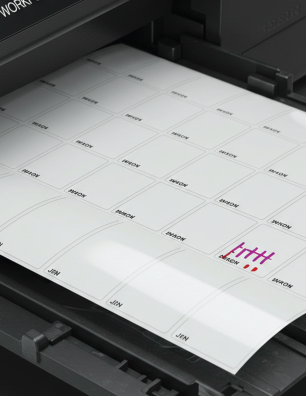
4 x 6 labels are available in both sheet and roll formats, compatible with most laser and inkjet printers.

Shipping and Order Fulfillment

The 4 x 6 size is the de facto standard for shipping labels — and for good reason. It gives you enough room to print a full delivery address, return address, barcodes, and handling instructions all in one clean, legible label. On sheets, you typically get 2 labels per page, making it easy to batch-print orders right from your desktop laser or inkjet printer. On rolls, you can feed them directly through a compatible inkjet roll label printer for faster, higher-volume fulfillment without the hassle of handling individual sheets.

Product Labels for Small Businesses

Cottage food producers, craft beverage makers, candle companies, and soap artisans all love 4 x 6 labels for their product packaging. The generous surface area gives you space to include your brand name, logo, ingredient list, net weight, and any required regulatory information — all on one label. When ordered on rolls, they feed smoothly through inkjet roll label printers like Primera LX series and Epson Colorworks models, letting small-batch producers label efficiently without outsourcing to a print shop.

Warehouse and Inventory Management

In a warehouse or stockroom setting, 4 x 6 labels are ideal for bin labels, pallet tags, location markers, and inventory tracking stickers. The size is large enough to be spotted quickly on shelves and racks, and the blank surface works with any inkjet or laser printer, giving you the freedom to customize layouts as your inventory system evolves. Roll format labels are particularly useful here — print on demand, right at the packing station, with no paper waste.

Roll labels allow for fast, on-demand printing — ideal for shipping stations and inventory workflows.

Event and Trade Show Materials

Need name badges, table tent labels, product sample tags, or booth display labels for an upcoming event? A stack of 4 x 6 sheet labels and your office inkjet printer is all you need. Design them the night before, print in the morning, and peel-and-stick in minutes. The large format also makes them effective as promotional stickers for giveaway items or branded packaging at trade shows.

Food and Meal Prep Labeling

Meal prep services, catering companies, and restaurant operators use 4 x 6 labels to mark containers with contents, prep dates, allergen information, and reheating instructions. The size accommodates a clean, readable layout without crowding — important when kitchen staff are moving fast. With a roll label printer on the prep line, you can generate customized labels for dozens of menu items quickly and consistently.

Sheets vs. Rolls: Which Is Right for You?

Sheet labels are the right choice when you need flexibility, occasional printing, or the convenience of a standard desktop laser or inkjet printer. They’re easy to store, require no special equipment, and are perfect for low-to-medium volume needs.

Roll labels shine in higher-volume environments. When you’re printing dozens or hundreds of labels per day, a dedicated inkjet roll label printer paired with 4 x 6 rolls saves time, reduces waste, and produces a more professional finished product. At LaserInkjetLabels.com, our 4 x 6 rolls are available in standard and double-capacity configurations to match your print volume.

Ready to find the right 4 x 6 label for your needs? Browse our full catalog of blank sheet and roll labels, or contact us and we’ll help you find the perfect match for your printer and application. See other Popular Label Sizes for shipping.

Custom printed waterproof labels

Uncompromising Durability: Why Your Brand Needs Custom Weatherproof Labels

In a world where products face diverse and often demanding conditions, the integrity of your brand’s labeling is paramount. Simply put, labels that defy the elements aren’t just an option—they’re a necessity. Our Custom Printed Weatherproof Labels are meticulously engineered to endure, ensuring your products maintain a professional appearance and your critical message remains perfectly clear, no matter what environment they encounter.

Imagine your products exposed to the scorching summer sun, the biting cold of winter, unexpected downpours, or even the constant friction of handling. Standard labels often fail under such stress, peeling, fading, or simply falling off. This not only diminishes your product’s appeal but can also lead to critical information being lost, impacting compliance and customer satisfaction.

What sets our weatherproof labels apart? It begins with the foundation: the materials. We offer an expertly curated variety of exceptionally durable options, including:

  • Vibrant White or Eye-Catching Yellow Vinyl: These materials offer excellent flexibility and resistance to moisture and tearing, making them perfect for a wide range of indoor and outdoor applications.
  • Sleek Silver Mylar: For a premium look and enhanced resistance to chemicals and extreme temperatures, silver mylar provides an unmatched level of sophistication and resilience.
  • Elegant Clear Material: Ideal for a “no-label look,” our clear weatherproof labels allow your product to shine through while providing robust protection against the elements.

Each of these high-performance materials undergoes rigorous testing to withstand the challenges of extreme heat, biting cold, sustained moisture, harmful UV exposure, and everyday abrasion. This ensures they don’t just cling to your product but actively resist peeling, fading, and withering, preserving your brand’s integrity over time.

Beyond their inherent durability, these labels empower your branding with crisp, high-impact designs. We print with precision, utilizing 1 to 3 spot colors to ensure your logo, product information, and essential details pop with clarity and vibrance. And to make high-quality, durable labeling more accessible than ever, the price you see already includes your first ink color.

Choosing custom printed weatherproof labels is an investment in your brand’s longevity and reputation. Ensure your labels protect your brand’s image in any condition, maintaining their professional appearance and legibility from shelf to consumer, and beyond.

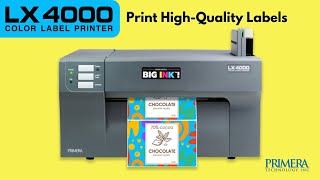
Labels for Primera LX4000

Elevate Your Product Presentation with the Primera LX4000
In today’s competitive market, striking product labels are essential for capturing customer attention. The Primera LX4000 inkjet roll label printer is a fantastic solution for businesses looking to produce high-quality, full-color labels on demand. This compact yet powerful printer brings professional-grade printing capabilities right to your desktop, allowing you to create stunning labels with vibrant colors and sharp details, all without the need for large print runs.

Whether you’re launching a new product, updating branding, or simply need short runs of custom labels, the LX4000 offers incredible flexibility and cost-effectiveness. Its ability to print beautiful, durable labels quickly makes it an invaluable asset for small to medium-sized businesses.

At LaserInkjetLabels.com, we understand the importance of reliable supplies. That’s why we offer a wide variety of Standard Roll Labels specifically designed and tested to perform flawlessly with your Primera LX4000. Our extensive selection includes diverse materials and sizes, ensuring you find the perfect match for your product and application. From glossy and matte papers to durable synthetics, we have the ideal roll labels to bring your designs to life.

Explore our full range of compatible roll labels and find the perfect fit for your LX4000 today: Explore Labels

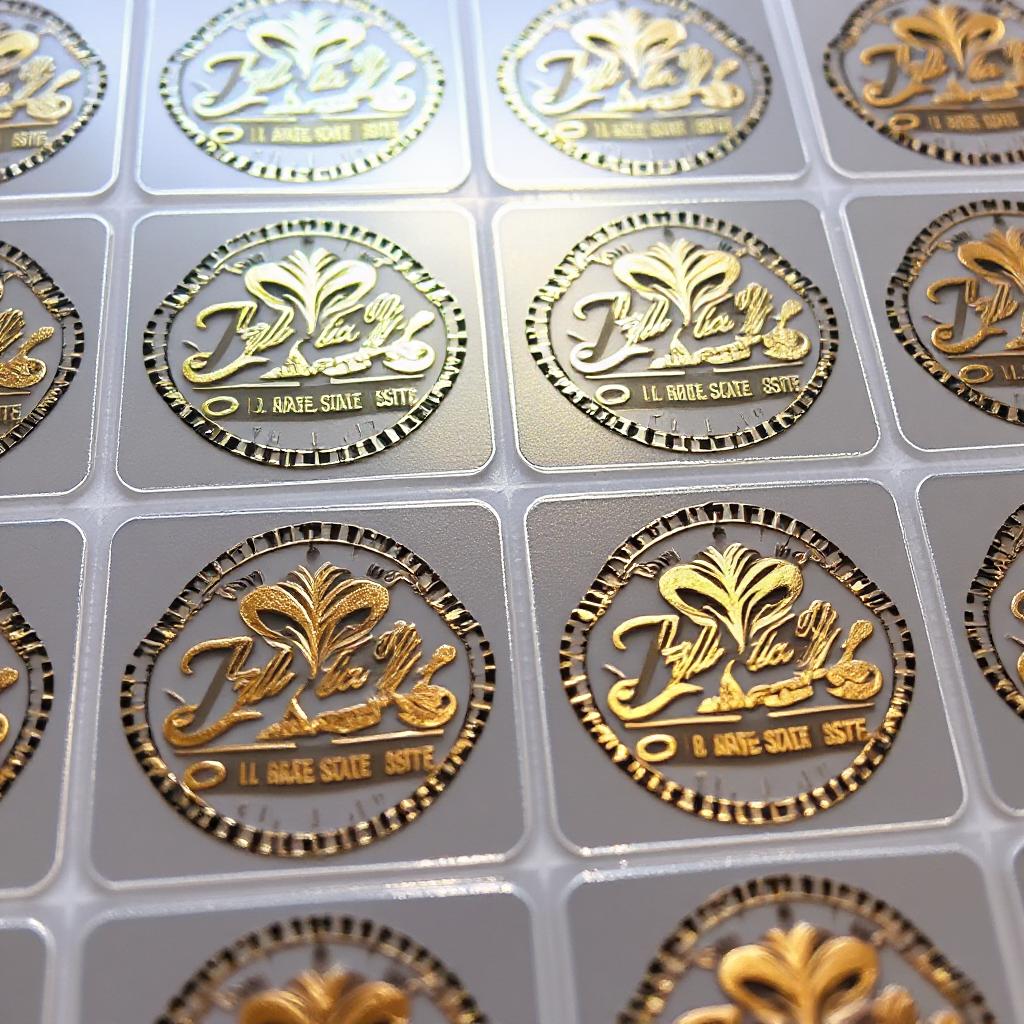
Foil Stamping on Clear Laser Labels

How to Foil Stamp Using Clear Laser Labels (8.5″ x 11″)

Foil stamping is a simple yet powerful way to enhance the appearance of your printed materials, giving them a premium, eye-catching finish. At LaserInkjetLabels.com, our 8.5″ x 11″ clear laser labels are a popular choice for DIY foil stamping projects—especially among small business owners, crafters, and designers who want to elevate packaging, invitations, or promotional products.

In this guide, we’ll walk you through how to foil stamp using our clear laser labels, including the types of printers that work best, proper printer settings, and key tips to get the best results.


What Is Foil Stamping?

Foil stamping is a process where metallic foil (usually in gold, silver, or holographic finishes) is adhered to printed toner using heat and pressure. When used with clear labels, the effect is especially stunning: the foil appears to float seamlessly on the surface it’s applied to, whether it’s glass, plastic, or product packaging.


Materials You’ll Need

To get started with foil stamping on our 8.5” x 11” clear laser labels, you’ll need the following:

  • Clear Gloss Laser Labels (available by the sheet at LaserInkjetLabels.com)
  • A monochrome laser printer (see recommended types below)
  • Foil transfer sheets (available from craft suppliers in various finishes)
  • A laminator or foil applicator machine (capable of reaching high temperatures)

Best Printers for Foil Stamping

For successful foil transfer, it’s essential to use a laser printer that deposits a thick, even layer of toner, as foil adheres only to the toner (not to ink or unprinted areas).

Recommended printer types:

  • Monochrome Laser Printers – These are ideal for foil stamping because they apply dense black toner without color mixing. Models by HP, Brother, and Canon are commonly used.
  • Color Laser Printers (with caution) – Some color laser printers work well, but results can vary due to differences in toner formulation. If you already own a color laser printer, we recommend testing with our free sample sheets.

Avoid using:

  • Inkjet printers (toner is required)
  • Low-heat or eco-mode laser printers (insufficient toner melting may occur)

Printer Settings for Best Results

Proper printer setup is crucial to successful foil stamping. Follow these steps:

  1. Use the correct media setting
    Set your printer to “Labels,” “Heavy Paper,” or “Transparency” mode. This increases the fuser temperature and slows down the feed, ensuring better toner adhesion to the clear polyester surface.
  2. Set to monochrome (black only)
    Foil transfer only works on black toner. If you’re using a color laser printer, make sure your design is set to print in 100% black.
  3. Print at the highest quality setting
    Choose “Best” or “High Resolution” in your printer preferences to maximize toner density.
  4. Let the toner cool
    After printing, allow the sheet to cool for 1–2 minutes to prevent smudging during foil application.

How to Apply the Foil

Once your label sheet is printed, it’s time to apply the foil:

  1. Place the foil
    Cut a piece of foil slightly larger than the printed area. Lay it shiny side up over the toner design.
  2. Sandwich the label sheet
    Use a protective carrier folder (such as parchment paper or a Teflon sheet) to prevent foil residue from damaging your laminator.
  3. Run through a laminator
    Set your laminator to high heat (around 300°F / 150°C) and slow speed. Run the label sheet with foil through the laminator once or twice to ensure good adhesion.
  4. Peel the foil
    Allow the sheet to cool, then gently peel away the foil. You should see the metallic foil precisely covering the toner areas on your clear label.

Tips for Best Results

  • Always test first: Printer toner and foil results can vary. We strongly recommend ordering a free sample of our clear labels to test your setup.
  • Avoid overly fine lines: Thin fonts or intricate designs may not transfer foil cleanly.
  • Try different foils: Not all foils are equal—some work better with certain toners or laminator heat settings.
  • Laminate for durability: If you’re using the foil-stamped labels outdoors, consider applying a clear laminate for extra protection.

Bring Your Designs to Life

Whether you’re creating luxury product labels, wedding invitations, or custom stickers, foil stamping on our clear laser labels adds a professional, polished look with minimal equipment. With a little practice, you can create standout labels at a fraction of the cost of outsourced foil stamping.

Ready to get started? Browse our clear gloss laser labels and request your free sample sheet today!


5 Reasons to Choose Blank Inkjet Semi-Gloss Labels

If you’re looking for high-quality labels that deliver a professional look, Inkjet Semi-Gloss Labels are the perfect choice. Whether you’re labeling products, packaging, or marketing materials, these labels provide a polished appearance with excellent print quality. Here’s why they stand out:

1. Vibrant, High-Quality Printing

Semi-gloss labels enhance color vibrancy and sharpness, making your designs pop. Whether you’re printing logos, barcodes, or full-color images, these labels ensure crisp, professional results.

2. Sleek, Polished Appearance

With a slight sheen, semi-gloss labels offer a premium look without excessive glare. This makes them perfect for branding, product packaging, and promotional materials that need to stand out.

3. Durable & Smudge-Resistant

Designed for inkjet printers, these labels quickly absorb ink to prevent smudging. Their semi-gloss coating adds durability, making them resistant to handling and minor moisture exposure.

4. Versatile for Various Applications

Ideal for bottles, jars, mailers, boxes, and more, these labels are a go-to choice for businesses and DIY projects alike. Whether you’re labeling handmade goods or shipping products, they provide a professional touch.

5. Easy to Print & Apply

Compatible with most inkjet printers, these labels are user-friendly and hassle-free. Their strong adhesive ensures they stick securely to different surfaces, keeping your labels looking flawless.

Upgrade your branding today! Order your White Semi-Gloss Inkjet labels now!

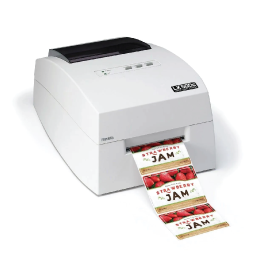
Roll Label Printing at Home

  1. Discovering the Creative Side of Roll Label Printers for Personal Projects
    Roll Label Printers aren’t just for businesses—they can be used in countless ways to add a personal touch to various projects. From custom gift tags for birthdays and weddings to creating unique home decor with printed patterns, roll label printer’s high-quality prints bring creativity to life. You can even use them for scrapbooking, personalizing jars for a homemade candle business, or labeling family heirlooms with beautiful, decorative fonts.
  2. Innovative Ways to Use Labels Beyond Shipping and Organization
    Labels have so much potential beyond traditional uses like shipping and organization. For example, you can use them for custom-designed planner stickers, fun DIY party favors, or as creative bookmarks. You can also design unique labels for your kitchen or pantry, making it a fun way to organize your spices or homemade jams while showcasing your design skills.
  3. Transforming Your Business Image with Customized Labels
    Customized labels offer businesses the chance to elevate their brand. Whether you’re creating product packaging, promotional giveaways, or even business cards, personalized labels can help reinforce your brand’s identity. By using distinct color schemes, fonts, and logos, you can create a cohesive, professional image for your company that attracts attention and builds customer trust.
  4. From Labels to Art: Unique DIY Projects with Roll Label Printers
    Roll Label Printers can be used as tools for creative DIY projects, allowing individuals to transform their labels into pieces of art. Whether it’s creating intricate label-based collages, printing custom decals for walls, or designing a custom art piece using unique fonts and colors, the possibilities are endless. You can even design labels to use as wall art in a gallery-style setup or turn them into fun, personalized stationery items like greeting cards or notepads.

Each of these topics touches on how Roll Label Printers go beyond their traditional purpose, offering countless ways to add a personal touch to both business and personal projects. You could explore any one of these ideas further, highlighting specific examples or case studies to inspire others! Would you like to dive deeper into any of these?

Labels for roll label printers